Frequently Asked Questions
Home
Use Telegram

You may now receive your Groups Place notifications via the Telegram App (iOS, Android, Windows, Mac & Linux) instead of e-mail or push notifications.
To use this feature:
- Go to your notifications page and click "Notification Settings".
- Remove all existing push notifications if you have them enabled.
- Choose "Use Telegram" and follow the on-screen prompts to connect your account.
Add Feeds to Your Group's Page
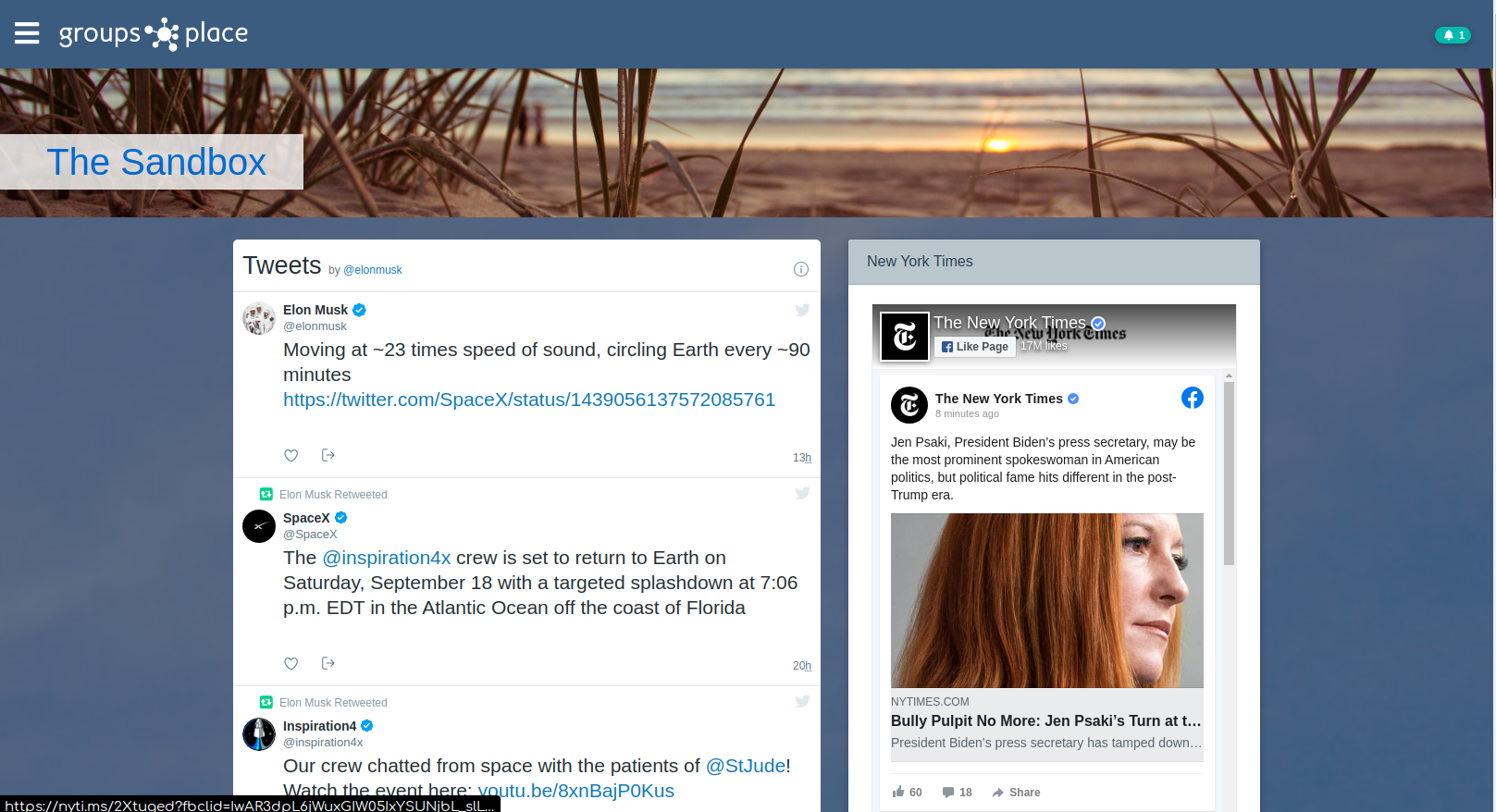
You now have the option to add Facebook, Twitter and RSS feeds to your group's home page!
Bring in relevant content from multiple sources to provide your members with more information.
On the home page designer, just add a new section, and pick one of the new types:
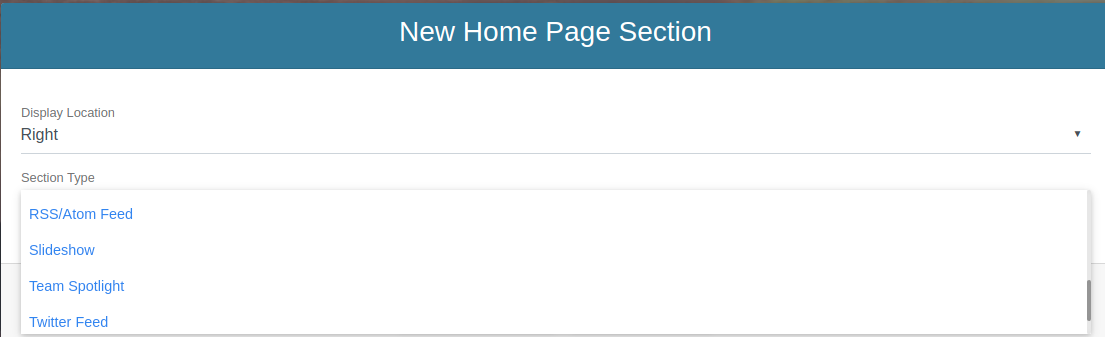
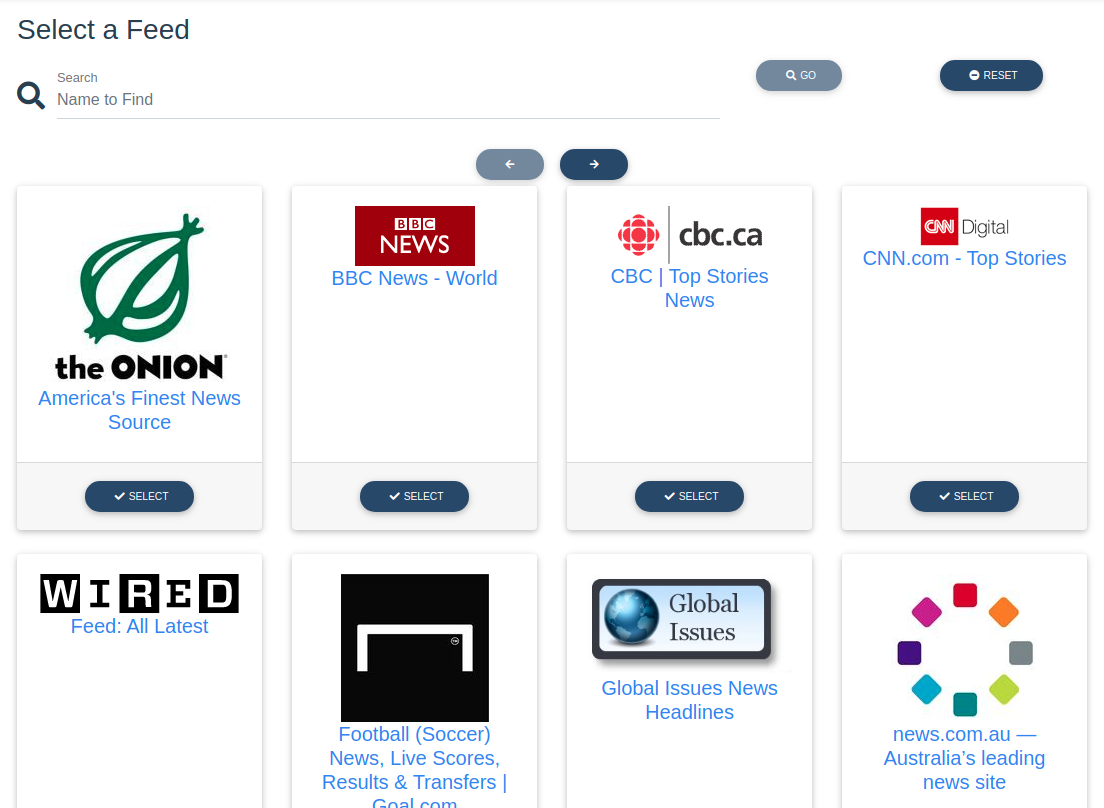
For RSS/Atom feeds, you can select from pre-defined feeds, or add your own by URL.
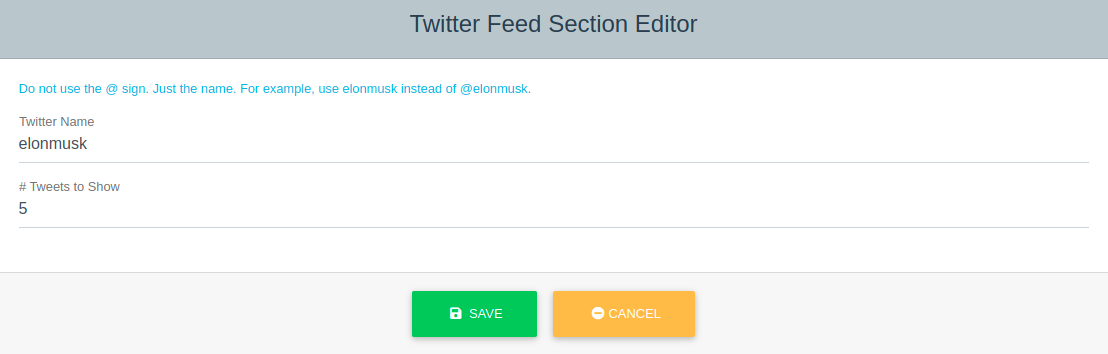
For Facebook and Twitter feeds, you just need to provide the page/handle names. For example, Elon Musk's Twitter feed:
Virtual ID Card
Virtual ID Card
If your group offers discounts to members or have another need for your members to prove their membership to a third party, there is now a feature to allow members to present a virtual ID card. This feature is enabled automatically; you don't have to take any steps.
To view your own membership card, navigate to your group. From the main menu under "More", choose "My Member ID Card".
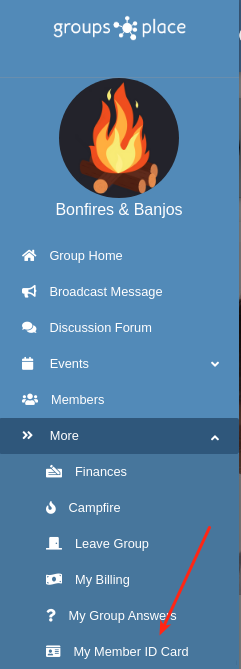
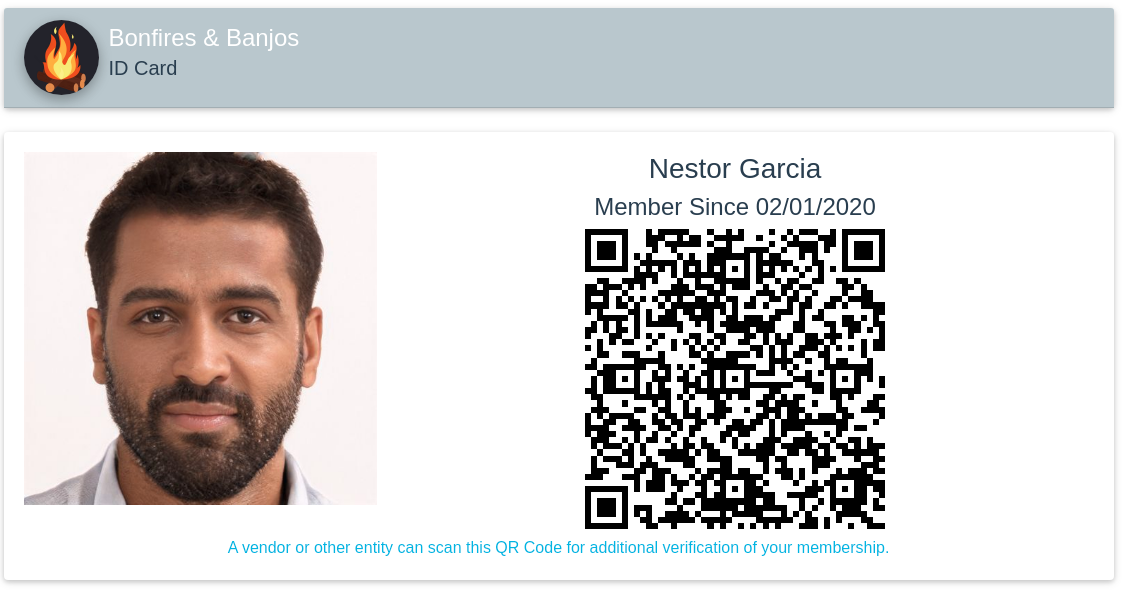
Members may print or display the page from their mobile device. The 3rd party may scan the QR code to get confirmation directly from Groups Place that the person is a member.
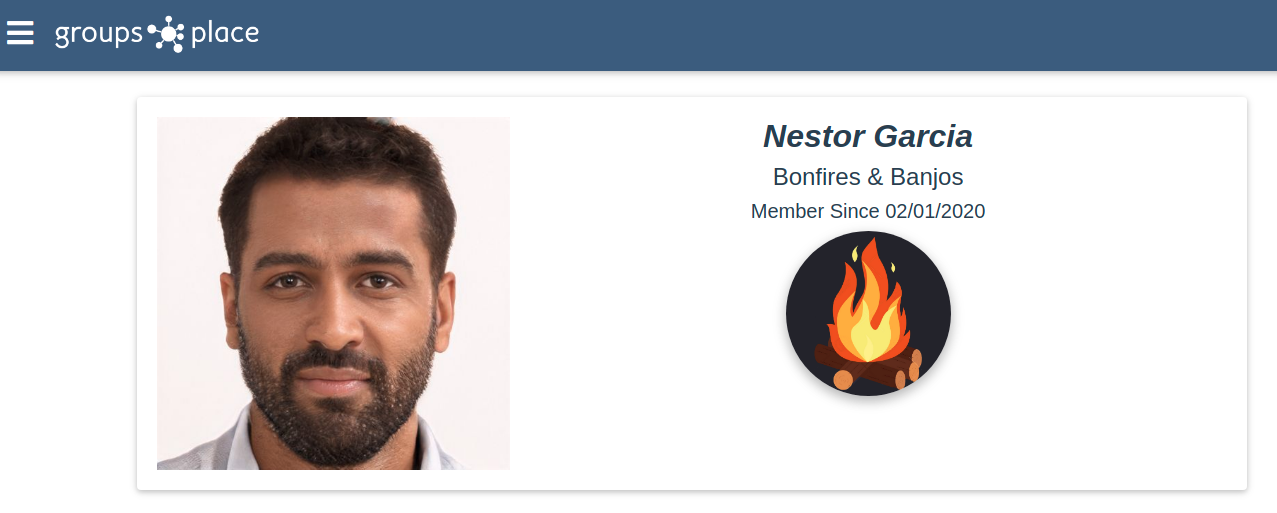
Scanning the QR code will result in page like this:
Event Suggestion Feature
Event Suggestions
You may now enable a feature to allow members of your group to suggest new events. To enable this feature, head over to your group's basic settings and check the box:
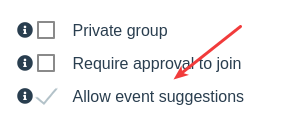
When enabled, members can suggest an event either from the main menu:
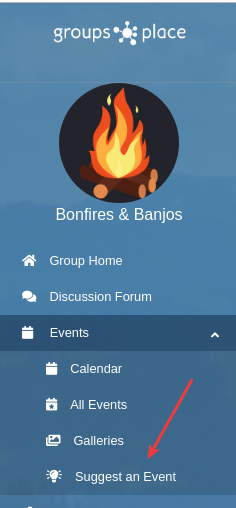
Or from the group's home page if you have the event listing enabled: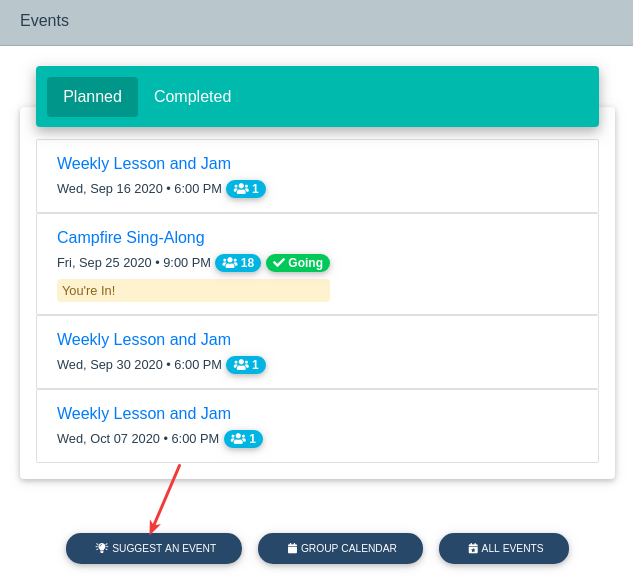
Members may comment on the suggestion just as they can on regular events:
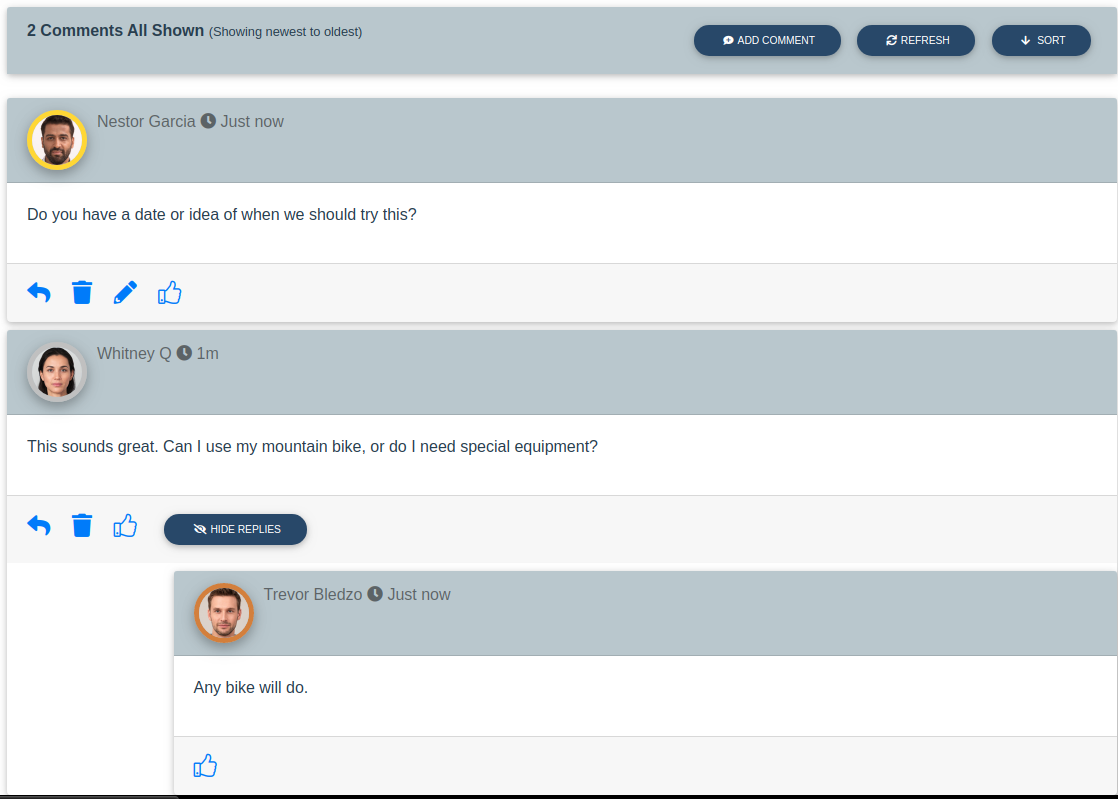
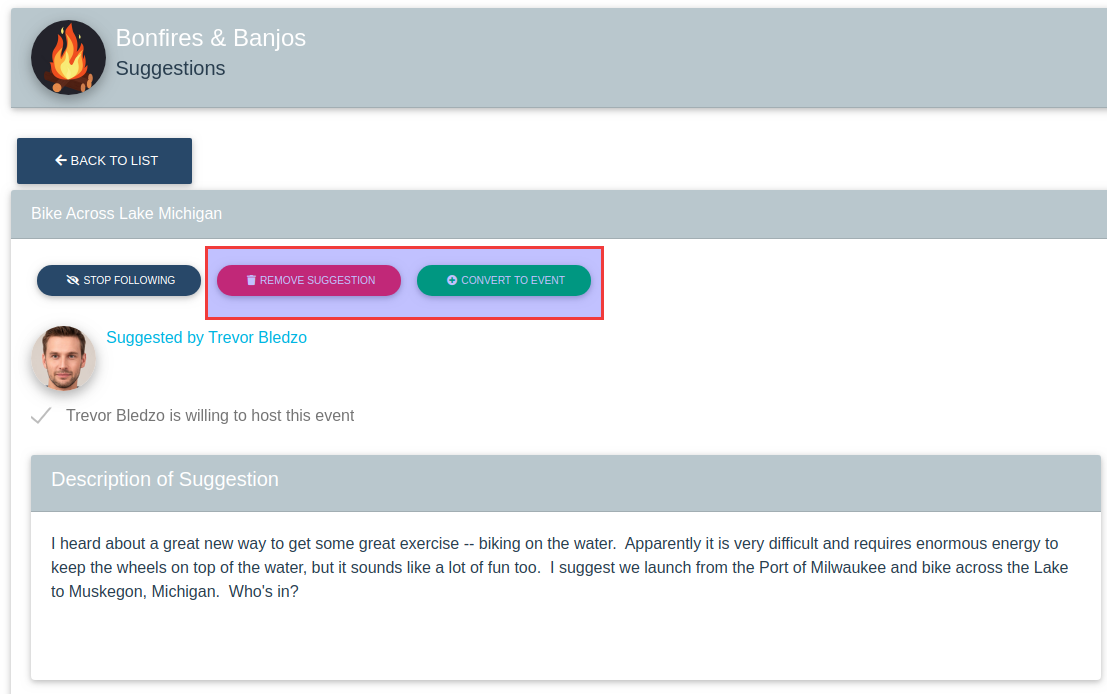
A group organizer or admin may convert the suggestion into a real event. Admins may delete suggestions.
Ezumee Groups

Last year, we announced our partnership with Ezumee to provide a custom platform for their groups migrating from Meetup and other platforms. In the course of our partnership this past year, we realized that our goals are aligned and we've modified the platform to allow for different billing models to support various types of groups. We also have the ability to have privately-branded versions of the platform, and Groups Place is now part of Ezumee as a separate brand. We didn't want to disrupt current groups with new URLs, etc. so for current groups, things will look and feel about the same -- with the exception of "Ezumee" being part of our name in the logo.
On our public home page, you might notice that we are asking potential new groups to go to Ezumee Groups to create their account and new group as this is where we'd like to see future growth happen.
In the near future, we will send out a survey to existing group owners to see if they wish to keep their groups on the Groups Place brand or migrate to Ezumee. We'll lay out the pros and cons of this at that time.

Working With Subscriptions
Subscription Plans
You can define multiple subscription plans to track member payments for things like membership dues. For example, you might have 2 levels of membership for your group like "Annual Membership" and "1 Month Free Trial". Or perhaps you have different payment amounts for senior citizens; you would create a subscription plan for regular members and one for seniors.
Once you have defined a subscription plan, you can attach plans to your members to start tracking payments.
You may define which subscription plan(s) satisfy membership requirements ("base membership"). In your members list, you will have the option to identify members who don't have a qualifying subscription so you may take action.
A subscription plan set up has 3 checkboxes at the top, defined as follows:
- Base Membership -- indicates that the plan requires membership requirements. You can have multiple plans that satisfy membership requirements, but a member only has to have of them in good standing to be considered valid. This lets you set up different levels of membership (e.g., Full member, partial, etc. or frequencies (annual member, quarterly member, monthly member, etc.).
- Automatic For New Members -- when checked, this plan will automatically be assigned to members upon joining your group.
- Let Members Choose Plan -- this is for base memberships only and can be used to allow new members to self select which plan they wish to use (monthly vs. annual, etc.).
The "when does it end?" field has the following possible values:
- Actual Days -- the plan will end on the actual number of days in the term. For example, for an annual plan started on April 15 of this year would end on April 14 of the following year.
- Following Year/Fixed Day/Month -- the plan will end the following year on the month and day you specify (e.g., March 31, etc.)
- Same Year/Fixed Day/Month -- the plan will end in the same year on the month and day you specify (e.g., December 31, etc.)
Automatic Renewals
If you enable automatic renewals, you can specify when the new period's subscription should be created and when the member is charged/notified. They may also make a payment once the new subscription has been created. You usually want to give the member some time to be notified and take action before their current subscription ends. You also have the opportunity to send 2 reminders in addition to the initial notice that their current subscription is ending. Reminders are only sent if payment has not been recorded.
Can I give credit for attendance on another site like Meetup?
Yes. If you had an established group on another site and wish to give credit for past participation, you may do so on each member's profile.
What happens if I change the reputation scoring for my group?
The reputation scores of your members will reflect the changes immediately. Reputation scores are not stored on the member record. Rather, the values that feed into a reputation score are stored instead. The actual score is computed on the fly based on the stored values. Even if you turn off the reputation feature, attendance values continue to be stored on the member's record so you can turn the feature back on and have legitimate reputation scores for your members.
How does the reputation score work?
Members who participate more, have a higher reputation with your group.
A person's reputation is indicated by a colored circle around their avatar on various pages within your group based on the rules you specify in your settings. Of course, if you don't like this feature or think it's irrelevant for your group, you may turn it off completely.
The default rules are as follows -- though you can change the rules for your group at any time:
Empty -- Score is 0 (or less in the case of no-shows)
Green -- Score of 1-9
Bronze -- Score of 10-24
Silver -- Score of 25-49
Gold -- Score 50 or higher.
Do I have to take attendance?
No. If attendance tracking is not important to you, you don't have to do a thing. However, note that everyone who has an RSVP as "I'm Going" will be marked as having attended at the conclusion of the event. You can always change this after the fact if you decide to.
Can I track no-shows?
Yes! (See also: How does the reputation score work?)
When can I take attendance?
Starting 30 minutes before the scheduled start time of the event, and any time after.
Can I set up recurring events?
Yes. Simple repeat rules can be established for weekly or monthly repeating events. Events may repeat up to a year.
Once you save an event, you will see an option to manage repeat rules. You will not see your repeated events until you publish it, and cannot change the rules after that. You may, however, edit individual repeated events and chose to copy changes to all in the series, only the one, or every one after the changed one.
More robust repeat rules will likely be implemented in the future.
How does the wait list work?
When you create an event, you have 4 options for how people on the wait list are processed when someone else cancels or reduces their guest count:
- Manual -- Nothing happens except the host gets notified. The host will manage the wait list manually
- By RSVP Date -- The person with the earliest RSVP date (and time) will be placed in the open slot
- By Reputation -- The person with the highest reputation score will be placed in the open slot. If two people are waiting with equal scores, then the one with the earliest RSVP date (and time) will be selected.
- By Seniority -- The person with the earliest join date (and time) will be placed in the open slot. If two people are waiting with the same join date/time (probably unlikely), the one with the earliest RSVP date (and time) will be selected.
In the case where the next person selected has a guest count greater than the available spots available, the event will be put into "Force Waitlist" mode, and the host will be notified to decide how to handle the situation manually. Once a decision has been made, there is a "Toggle Force Waitlist" button on the "Edit Attendees" page to resume normal processing if another person cancels.
IMPORTANT!
When you make adjustments as an administrator, automatic wait list processing will not happen. That means if you increase the number of open spots, or take people off the RSVP list, nothing will happen automatically. This is by design to keep you in control of your attendance list without worrying about the system doing its own thing.
When you do make a change, you can either shuffle people around as you deem appropriate, or you may kick off the automatic processing by pressing the "Process Waitlist Now" button on the "Edit Attendees" link of the event page.
Can I create draft events?
Yes. In fact, all new events are created as a draft initially. You have to publish the event when you are ready for it to be visible to your members. This gives you time to set the event features, collaborate with other organizers, etc., before letting members know about it.
When are reminders sent out?
That is entirely up to you! On the event edit page, there is an "Event Assistant" which lets you control when events are announced, reminders are sent, etc.
Once you have at least one event set up with tasks, you can mark those tasks as a default for all future events that are created so you don't have to manage tasks with every new event.
(Cloned events will use the tasks associated with the original if they exist, otherwise the defaults will be used.)
Can I control the window when RSVPs can be made?
Use the Virtual Assistant on the event to set a date to open the event for reservations. You may also create a task to close the event to reservations.
Important! If you wish to publish the event and have reservations open at a future date, be sure to check the box "Close Reservations".
When are events announced?
That is entirely up to you! On the event edit page, there is an "Event Assistant" which lets you control when events are announced, reminders are sent, etc.
Once you have at least one event set up with tasks, you can mark those tasks as a default for all future events that are created so you don't have to manage tasks with every new event.
(Cloned events will use the tasks associated with the original if they exist, otherwise the defaults will be used.)
Can members upload photos to an event page?
Yes. Members can add images to each event's gallery.
Can I get a feed for Google Calendar?
Yes. On your profile page, you can get a personal link for an ical feed which can be used on Google and other caledars using this format. Only events that you have RSVPd for will be in this feed. Old events do not fall off. Note: calendars like Google and others access the feed on their own schedule, and we can't control how frequently the calendar synchronizes. Changes on Groups Place generally show up within 12 hours.
Can I use bold and italics in my events?
Yes! In addition to bold and italics, you have a full WYSIWYG (what you see is what you get) editor. You may add images, hyperlinks, lists, and so on.
Can I create a private group?
Yes! A private group is truly private. It's not shown on any public-facing page. Because it's private, it's up to you to communicate to your people on how to join the group. You will be given a secret URL to share privately with your members.
Can I pre-authorize members?
Yes. If you run a private group or require approval to join, you can pre-authorize members by email address. Once a person creates an account on The Groups Place, their email address is checked against your pre-authorization list. If there is a match, they are automatically joined to your group.
Can I control how my group's page looks?
For the most part, yes. Although you can't change the overall style (colors, fonts, etc.), you can add images and unlimited blocks of text. You have the option to control where things are laid out on your page, and which features you wish to show (event feed, gallery, notifications, etc.). You can also control what is seen by members or the general public (if your page is not private).
You may also create sub-pages as you see fit... for example, group rules, more information, etc. There is a WYSIWYG (what you see is what you get) text editor to help you lay out your pages/documents easily.
Can I charge my members for dues or membership?
Yes. You may define "subscription plans" for your group and assign them to members. Subscription plans can be required for membership, or "add on". For example, annual dues might be required, but being part of a "coffee club" might be optional. You can set up any number of plans and assign them manually to members, automatically upon the member joining, or in bulk if you want to assign a plan to existing members.
You may record payments manually on the member's record, or you may accept credit cards from your members. To accept credit cards, you must have an account with Stripe and you need to set up your group with API credentials you can get from your Stripe dashboard. It is highly recommended that you create a restricted API key that only has access to accept payments on your behalf, and use that restricted key on Groups Place. Setting up your Stripe credentials is done on your Group menu under Settings -> Banking.
Any transaction processed via Stripe will automatically be reflected on your member's account on Groups Place.
We held a lot of events before coming to Groups Place. Can we reflect this?
Yes! While logged into your account, click the "Contact" button at the bottom of the page to send a message to the system administrator.
In your message, please indicate the group name. If your group still exists on another platform, (e.g., Meetup), please provide a link so the event history can be verified. Otherwise, we will update groups on a case by case basis. Essentially we don't want groups falsely indicating activity when it's not true. If your group looks legitimate and the requested past event count seems reasonable based on your membership size, it should not be a problem to adjust.
How do I delete a group?
Due to the destructive nature of removing a group, there is no button or page to do this within the system. If you need to remove your group, please send an internal message to Groups Place Administrator or send an email to help@groups.place. We'll take care of the deletion for you. In the event your request is for a large or active group, we might ask more questions before deleting the group (e.g., can someone else take over, are you sure, etc.) . If the group looks like a test or has been inactive for some time, we'll process the request right away.
How do I cancel my Subscription?
To cancel your subscription, simply remove your credit card from your account. When your next payment is due, your group(s) will be suspended. You can restart your subscription at any time. If your group remains inactive for an extended period, we will notify you before removing your group completely from the system.
What can the public see about my private group?
Nothing. Private groups are just that: private. The only way people can find and join your group is with a private URL that you would have to provide to them. Your group name will not show up on the group spotlight or in the group search.
What privileges do different roles have?
ROLES
Admin - Has full control over the group. An admin can control membership (approve, ban, etc.), control the layout of the page and the overall group settings. (Plus all the privileges of a group organizer).
Group Organizer - Can create new events, edit/maintain existing events and control RSVPs to them. Organizers can also setup and change venues and group-wide images.
Event Organizer - Same as a group organizer, except they may only create and control events they are hosting, whereas a group organizer may control all events within the group regardless of host.
Member - can view all pages in the group and control their own participation in events. Members may add photos and comments to individual events.
SPECIFIC FUNCTION ACCESS
In addition to roles with broader privileges, you may also cherry pick some key admin functions to grant to some members of your group:
Accounting -- assign membership plans to members and track payments.
Approve Members -- approve or deny members in groups where approval is required for a join.
Banking - normally only the group owner can set details for receiving payments, but granting this access allows the owner to delegate this control (for example to a group treasurer or accountant).
Data Edit - if you track custom fields on your members, this access will allow the member to view and edit the custom fields that are normally only visible to admins.
Data View - view but not edit any custom fields you track on your members.
Edit Documents - grant access to edit any document in the document library.
Edit Home Page - change the layout of the home page including the banner image and background image.
Member Notes - view or edit notes about a member.
Remove Members - force out or ban members from the group
Send Invites - pre-authorize members to join the group.
Who can see the answers to questions I ask members?
That's up to you. You can control the visibility of question to admins only, organizers & admins or all members.
Can I ask questions of my members?
Yes. You may define as many questions as you like. You can choose from 3 types of answers: Yes/No, Short Answer and long answer.
In addition, you can add an acknowledgement item. Any question or acknowledgement can be required to join your group. You can also add a required question/acknowledgement any time and your members will be asked (or forced) to answer before they can view your group page or sign up for an event.
What information can I track about my members?
Whatever you want! Group administrators can define up to 13 different fields to track important information about the members. You may define 5 text fields, 3 numbers, 3 dates and 2 drop-downs. (examples: emergency contact information, pet names, spouse names, skill level for a particular sport, membership dues paid, payment dates, etc.)
Can I require a photo to become a member of my group?
Yes. If your group requires a photo, a potential member who doesn't have a profile picture will get a message telling them to add a photo when they try to join.
Can I require approval before someone becomes a member?
Yes. If approval is required, new members aren't added to your group until a group admin approves the request.
What's the difference between banning and forcing out?
The "Force Out" button on the member page simply removes a member from your group as if they left on their own. Your group is still visible to this member (if it's not a private group), and they can rejoin if they wish. Banning a member removes them from your group and they are not allowed to rejoin. In addition, banned members can't even view the publicly-facing aspect of your page (if any).
How much does it cost?
It's free to start a group and see how the site works. This lets organizers try out the site to see if it will work for them without any obligation. Feedback from organizers is valuable to make this site work the way organizers do.
If you continue to use the site, you will be charged once you have more than 10 members and you have 1 completed event with more than just yourself. You will not be asked for payment details until this happens.
The fee structure is:
- Free if you have fewer than 10 members across all groups you own.
- US$5.95 per month or US$59.95 per year.
- You may have as many groups as you wish.
- In the future we may charge a higher fee for owners who have a high volume members across multiple groups. That situation doesn't exist today, but we will monitor it as the site grows. The definition of "high volume" is not yet determined, but it would be thousands, not hundreds.
Is there an app?
Not yet. It is being considered as a future feature.
If you have an iOS or Android device, you may use the site as an app. To do so, navigate your device's browser to https://groups.place
From the home page, add the site to your home screen. The way you do this varies by device, but Android and iOS devices both have this option.
Once you've added the site to your home screen, navigate to your home screen and launch The Groups Place from there. You will be acessing the site without the browser controls and you will have more of a native app-like feel.
Are there different versions for desktops and mobile devices?
No. Pages are "responsive" to adjust to fit the screen. On desktops, there are generally two columns. On mobile devices and small screens, there is one column. Blocks that would have been on the right flow to be under those that would have been on the left.
Do you have a version in my language?
If your language is English, then yes. Otherwise, sorry, but the site is in English only.
Can I log in with Facebook or Google?
Yes! You may use either or both, or continue to use a Groups-Place-only id/password.
What is the Virtual Assistant?
The Virtual Assistant is a tool you use on each event to control when certain things happen.... such as announcing your event, sending reminders, closing the event to reservations, opening for reservations, etc.
It's your group, and you're in control.
Can I set default tasks so I don't have to create them for each task?
Yes. Once you have an event with tasks defined, you can hit the button labeled "Set as Default Event Tasks". Any new event you create will use this list of tasks automatically. When you clone an event, the original event's tasks will be used, not your defaults (if they are different).